How to Make the Tesla Roadster AI Video (Ramp, Flip & Prompts) – 2026
A step-by-step tutorial for turning one photo of your car into the viral ramp-jump AI video — the exact prompt, best photo angles, settings, costs, and how to label it as AI.
 Video Lite Editorial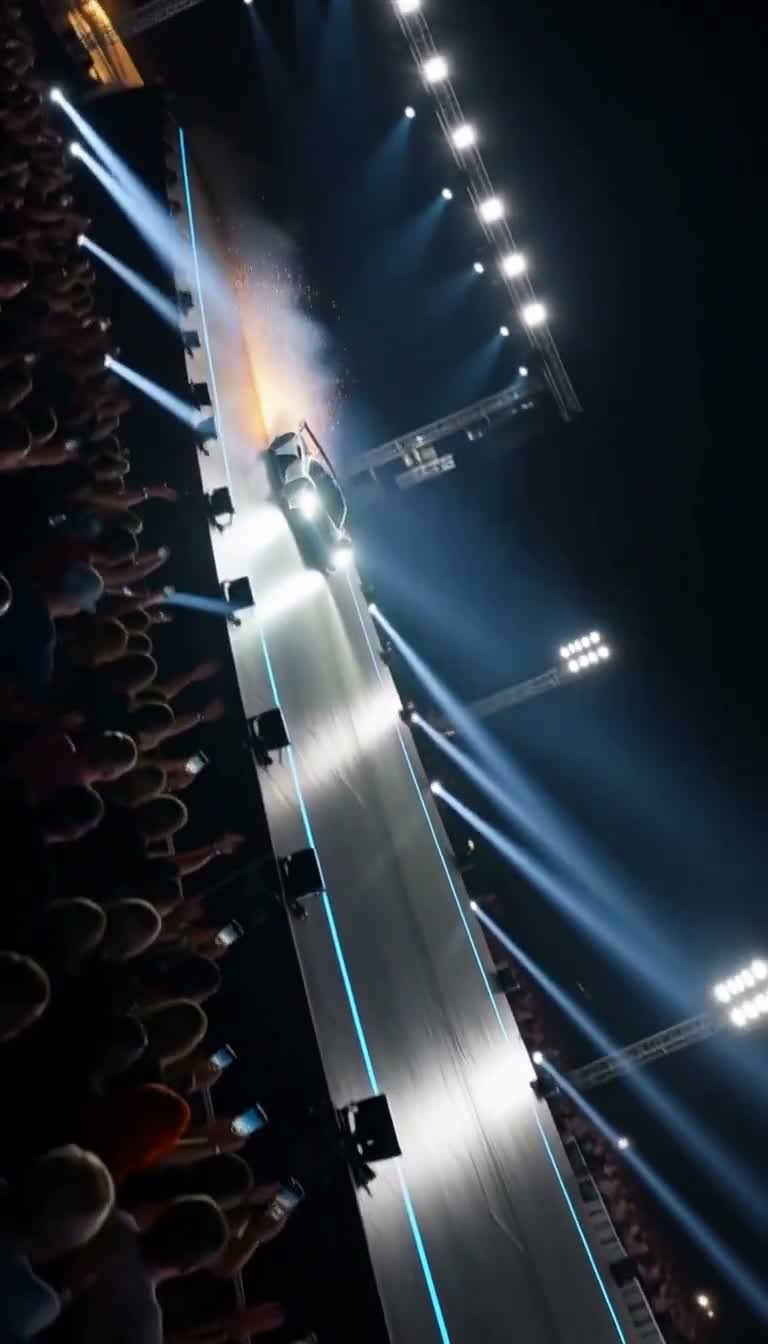
The electric-roadster launch moment from October 15 turned into an instant AI video trend: a car charges up a steel ramp and leaps over a stage at a night event. Within a day, people were recreating the stunt with their own cars — trucks, vans, buses, anything with wheels. This tutorial shows how to make an original version with your own car photo, in about two minutes.
The quick answer
- Take or pick one clear photo of your car (side or three-quarter view).
- Open the Tesla Roadster AI Video Generator, upload the photo, and press create.
- Download the vertical MP4 — and label it as AI when you post it.
Everything below explains the details: the exact prompt, which photos work best, what it costs, and the truck-and-van variants that are honestly funnier than the sports car.
AI-generated demo made with this template. Label AI videos when you share them.
Step 1 — Pick the right photo
The model uses your photo as visual inspiration for the vehicle's look, so give it a fighting chance:
- Whole car in frame, nothing cut off at the edges
- Side or three-quarter front angle — ramp jumps read best in profile
- Decent light: overcast daylight or a clean garage shot beats a night phone snap
- Any vehicle works: see the pickup and van demos on the generator page — comedy value rises as the vehicle gets less aerodynamic
You do not need a Tesla or any specific brand. Descriptive mention aside, the generation itself is brand-neutral: no logos, no real-event footage, no one's likeness.
Step 2 — Use the exact prompt (it's public)
This is the full prompt the generator runs, published so you can reuse it anywhere:
Use the supplied photo of a vehicle as loose visual inspiration for an original launch-stunt scene: the vehicle accelerates up a long steel ramp at a night launch event and leaps over the stage, light trails and sparks, cheering crowd silhouettes, dramatic vertical framing, coherent motion. This is a fully original AI stunt scene — do not reproduce any real event footage, brand logos, trademarks or real-person likeness.
Two optional tweaks that work well as a short scene note:
- Slow motion at the jump —
slow motion as the car leaves the ramp, camera tracks sideways - Comedy variant —
the van barely clears the crates, wobbles mid-air, lands with a bounce
Step 3 — Settings, length and cost
On the generator page the model, duration, resolution and aspect ratio are real choices — only options the selected model supports are shown, and the live credit estimate updates with every change. A typical short vertical clip costs a few hundred credits; sign in and the page shows your remaining free previews and the exact price before you create.
Step 4 — Post it (and label it as AI)
The trend only works if people know it's a stunt, not a miracle:
- Post the vertical MP4 as-is; it downloads ready for TikTok, Reels and Shorts.
- Label it AI — in the caption or the platform's AI label. The original viral clips were AI too, and honesty is part of the joke.
- Don't pass it off as real footage of any actual event or brand.
Is the stunt real or AI?
100% AI. The launch moment people reference was a staged reveal, and every ramp-jump recreation making the rounds — including every demo on this site — is generated. If a clip shows a sedan soaring over a stage in slow motion, it was made with tools like the ramp template, not a crane and a very brave driver.
What's next
The template lives in our video tools directory next to the other photo-to-video presets — if the ramp gets old, there's a candlelit party scene, a two-person studio booth, and a small pile of dance memes waiting there.